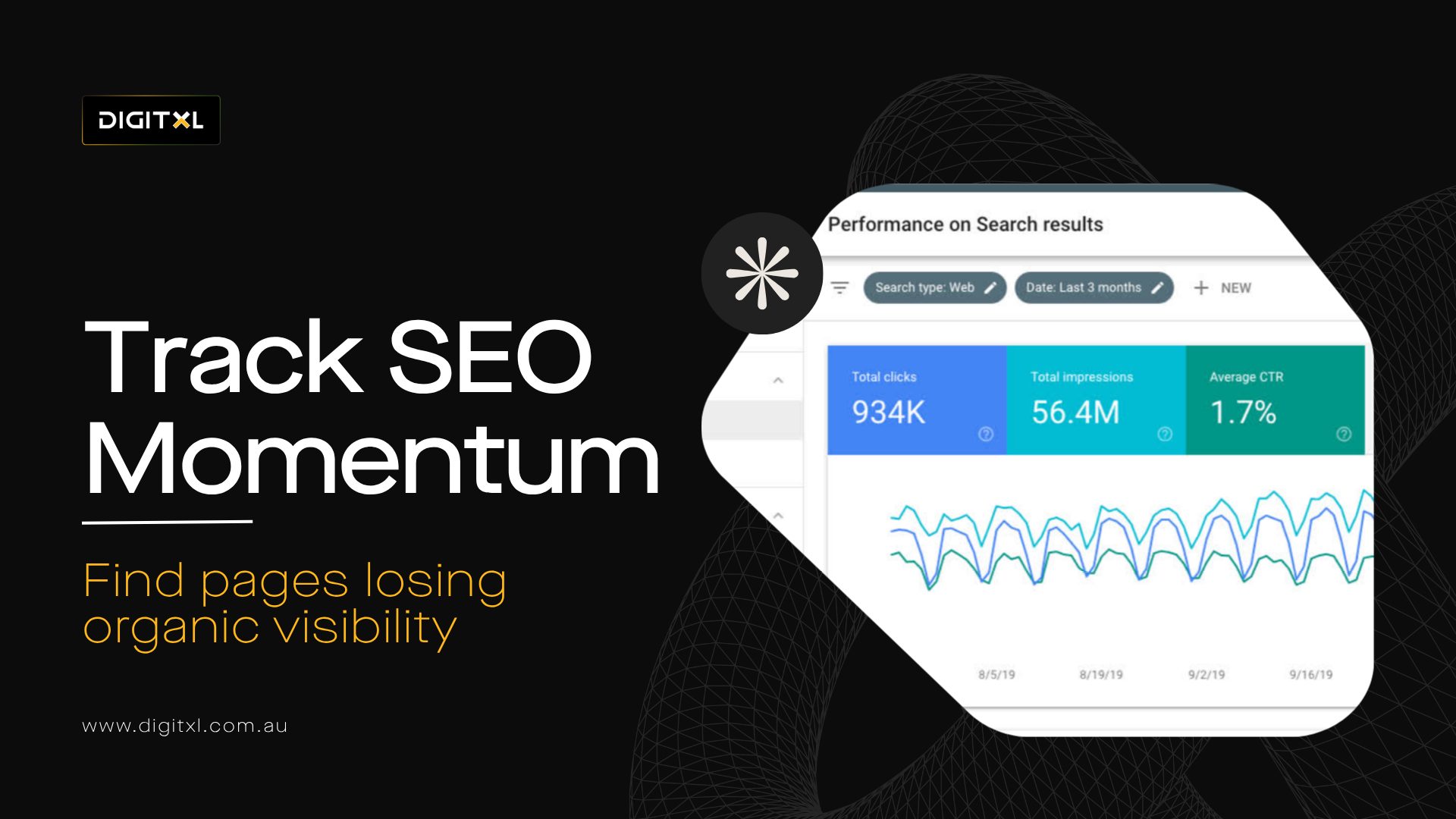
1. What Does SEO Momentum Mean?
SEO momentum refers to whether a page is gaining, holding or losing organic search visibility over time.
A page with strong SEO momentum may be gaining impressions, clicks, ranking position, query coverage, Rich results, Search Appearance visibility or conversions. A page losing momentum may still receive traffic, but the trend is moving in the wrong direction.
A page may be losing SEO momentum when:
- Total clicks are declining
- Total impressions are dropping
- Average CTR is weakening
- Average position is getting worse
- Search query data is shrinking
- Page rankings are slipping
- Competitors are overtaking the page
- The content no longer matches search intent
- The page is not attracting the same organic search visibility as before
This is why many teams ask: how do you use Google Search Console to find declining pages before traffic drops too far?
The answer is to compare page-level performance over time and identify URLs with meaningful negative trends.
2. What Are Decaying Pages In Google Search Console?
Decaying pages are pages that previously performed well in organic search but are now losing clicks, impressions, rankings, click-through rate or visibility.
A decaying page is not always broken. It may still rank, still receive organic traffic and still appear in Google Search results. The issue is that its trend is declining.
For example, blog posts may have generated strong traffic six months ago, but now clicks are down, impressions are lower and the page ranks for fewer valuable search queries. A service page may still appear in Search results, but its Average position may have slipped from Google Page 1 to page two.
Learning how to find decaying pages in Google Search Console helps teams refresh original content before performance drops too far.
3. Why Pages Lose SEO Momentum
Pages can lose SEO momentum for several reasons. The cause is not always technical.
3.1 Content Is Outdated
The page no longer reflects current customer questions, product details, service information, industry changes or search expectations.
For example, a page targeting “2021 running shoes” may decline if search demand has moved to newer models, while a page about the 2020 presidential election may become less relevant unless it serves a historical search intent.
3.2 Competitors Have Improved Their Pages
Other websites may have added better structure, stronger FAQs, clearer answers, richer examples, updated content descriptions, semantic content or more useful information.
3.3 Search Intent Has Changed
Google may now prefer a different type of result for the same query, such as comparison pages, product pages, local pages, guides, videos, People also ask answers or short answer content.
3.4 CTR Has Dropped
The page may still rank, but fewer people are clicking because the title tag, Meta description, search result angle or Search Appearance is less compelling.
3.5 Average Position Has Declined
The page may have slipped lower in Search results, reducing clicks and visibility.
3.6 Internal Links Have Weakened
If fewer important pages link to the URL, the page may lose authority and discoverability. Internal links help Google understand which pages matter most on the primary domain.
3.7 Technical SEO Issues Exist
Indexing, canonical, crawlability, XML sitemap, mobile usability, Core Web Vitals, structured data, HTTP Strict Transport Security, Noindex Tags or page experience issues may affect visibility.
3.8 Keyword Cannibalisation Is Happening
Keyword cannibalization, also called Keyword cannibalism, can happen when multiple pages compete for the same search queries. This can split ranking signals and weaken performance.
4. What To Check First In Google Search Console
Before making SEO changes, use Google Search Console to understand where the decline is happening.
4.1 Check The Date Range
Compare the last 28 days, 3 months or 6 months against the previous equivalent period.
4.2 Check The Pages Tab
Find URLs losing clicks, impressions, CTR or Average position.
4.3 Check The Queries Tab
Identify which search queries are causing the decline for each page.
4.4 Check CTR
Look for pages where impressions are stable but clicks are falling.
4.5 Check Average Position
Find pages where rankings have dropped over time.
4.6 Check Impressions
Review whether the page is appearing less often in Search results.
4.7 Check Devices
Compare desktop and mobile performance to identify device-specific opportunities.
4.8 Check Countries
Review whether the decline is happening in a specific market. For example, rankings may differ between Google Canada, Google US and other regional search results.
4.9 Check URL Inspection
Use the URL Inspection Tool to confirm whether the page is indexed, discoverable, crawled and using the correct canonical URL.
4.10 Check Indexed Pages
Review Indexed pages to make sure important URLs are still present in the search index.
5. How To Use Google Search Console To Find Declining Pages
6. Open The Performance Report
Start in Google Search Console and open the Performance report for Search results.
Select all four core metrics:
- Total clicks
- Total impressions
- Average CTR
- Average position
These metrics help you understand whether a page is losing traffic, visibility, click appeal or ranking strength.
The Performance section is one of the most useful areas of Search Console because it shows search analytics at page, query, country, device and Search Appearance level.
7. Compare Two Time Periods
Use the date comparison feature to compare a recent period with a previous period.
Useful comparisons include:
- Last 28 days vs previous 28 days
- Last 3 months vs previous 3 months
- Last 6 months vs previous 6 months
- Same period year on year
Shorter comparisons are useful for recent ranking drops. Longer comparisons are better for identifying slow content decay.
For seasonal businesses, year-on-year comparison is often more reliable than comparing the last month with the previous month.
8. Go To The Pages Tab
After setting the comparison, open the Pages tab.
This shows organic search performance by URL. Look for affected pages with declining clicks, impressions, CTR or Average position.
The best pages to review are usually those that previously had meaningful visibility. A page dropping from 2,000 clicks to 1,200 clicks is usually more important than a page dropping from 10 clicks to 3 clicks.
9. Sort By Click Loss
Start by sorting pages by the biggest drop in clicks.
Click loss shows where SEO decline is already affecting traffic. These pages may need faster attention because they are already contributing less to business performance.
However, clicks alone do not explain why the decline happened. You need to review impressions, Average CTR and Average position together.
10. Review Impression Decline
If impressions are falling, the page may be appearing less often in Search results.
This can happen when rankings drop, search demand changes, query coverage shrinks, a page is removed from the search index or the page no longer matches search intent as well as it once did.
If impressions are down but Average position is stable, the issue may be related to lower search demand or fewer query opportunities. Google Trends can help validate whether demand has changed for the topic.
11. Review CTR Decline
If impressions are stable but clicks are falling, CTR may be the problem.
This often means the page is still visible, but users are choosing other Search results. The title tag, Meta description, content angle, Search Appearance or Rich results visibility may not be strong enough.
To fix this, review whether the title clearly answers the search query, includes the main topic and gives users a reason to click.
12. Review Average Position Decline
If Average position is getting worse, the page may be losing ranking strength.
This can happen because the content is outdated, competitors are stronger, Internal links are weaker, External links have changed or the page no longer satisfies search intent.
When reviewing Average position, avoid overreacting to small changes. A movement from position 3 to 6 can be commercially meaningful. A movement from position 48 to 52 may be less urgent unless the page is targeting a strategic topic.
13. Click Into The Page And Review Queries
After identifying a declining page, click on the URL and go to the Queries tab.
This shows which search terms are driving or losing performance for that specific page.
Look for:
- Queries losing clicks
- Queries losing impressions
- Queries with lower CTR
- Queries where Average position dropped
- Queries that no longer match the page well
- New queries the page could better support
- Branded queries
- Non-branded queries
This step is important because a page may not be declining for every query. Sometimes a few high-value search queries are responsible for most of the traffic loss.
14. Review The Branded Vs. Non-Branded Split
A branded vs. non-branded split helps teams understand whether traffic loss is related to brand demand or broader organic search visibility.
14.1 Branded Queries
Branded queries include your company name, product names or service names connected to your brand. Declines here may suggest brand demand, reputation, search behaviour or campaign activity has changed.
14.2 Non-Branded Queries
Non-branded queries show whether your site is visible for category, informational, commercial or problem-led searches. These are often important for geographic expansion, new customer acquisition and long-term SEO growth.
15. Prioritise Pages By Business Value
Not every declining page deserves the same level of attention.
For pages that still attract meaningful organic traffic but generate fewer enquiries or sales, a CRO agency can assess whether the problem sits within the landing-page experience rather than search visibility alone.
Good prioritisation considers:
- Click loss
- Impression loss
- Ranking drop
- CTR decline
- Commercial intent
- Conversion value
- Content freshness
- Competitor strength
- Effort required to fix
- Whether the URL supports Google Ads landing pages
- Whether the page supports strategic organic traffic
A declining service page may be more important than an old blog post with low commercial value. A product category page losing impressions may need attention before a broad awareness article.
16. How To Fix Pages Losing SEO Momentum
Once you find declining pages in Google Search Console, the next step is to diagnose and improve them.
17. Refresh Outdated Content
Update old examples, screenshots, product details, service descriptions, FAQs, statistics, content descriptions and recommendations.
Pages often lose momentum because they no longer feel current, complete or useful enough compared to newer competitor pages.
A Content Audit can help identify which blog posts, service pages, product pages and resources need refreshes.
18. Improve Search Intent Alignment
Review the queries that have dropped and check whether the page still answers what users are looking for.
If users want a checklist, comparison, pricing guide, tutorial, product page, service explanation, video answer or direct People also ask style response, the page should match that intent clearly.
19. Improve Titles, Meta Tags And Meta Descriptions
If impressions are steady but CTR is falling, rewrite the title tag, meta tags and Meta description.
The title should be specific, relevant and benefit-led. The Meta description should explain why the page is useful and what the user will get from visiting it.
20. Add Better Internal Links
Internal links help users and search engines understand which pages matter.
Add links from relevant high-authority pages, blog posts, service pages and category pages to support declining URLs.
Use descriptive anchor text that matches the page topic naturally.
21. Review External Links And Broken Links
External links can influence page authority and trust. If important backlinks are lost or broken links appear across the site, page rankings may weaken over time.
SEO tools can help identify broken links, lost links and pages that need link clean-up.
Use the Disavow Tool carefully and only when there is a clear issue with harmful or search spam related links.
22. Run A Content Gap Analysis
A content gap analysis helps identify missing topics, subtopics, examples and questions that competitors answer better.
This may include reviewing:
- Search query data
- Competitor pages
- People also ask questions
- Q&A communities
- Stack Exchange Network discussions
- Stack Overflow threads for technical topics
- Google Trends
- SERP features
- Search Appearance
- Related queries
The goal is to improve semantic content so the page better matches the search ecosystem.
23. Review Technical SEO Issues
Use Google Search Console, URL Inspection Tool, Page Indexing report, Crawl stats, PageSpeed Insights and Core Web Vitals to check indexing, canonical status, crawlability, performance and page experience.
If the page is not indexed correctly or has technical issues, content updates alone may not solve the problem.
24. Key Google Search Console Reports To Review
25. Performance Report
The Performance report helps teams analyse Total clicks, Total impressions, Average CTR, Average position, search queries, pages, countries, devices and Search Appearance.
26. Page Indexing Report
The Page Indexing report helps teams review Indexed pages, de-indexed pages, crawled, currently not indexed pages, indexing backlog, affected pages and whether important URLs are included in the search index.
27. Coverage Report And Index Coverage
The older Coverage report and Index Coverage concepts are still commonly used by SEO teams when discussing indexing issues. These areas help identify pages excluded from the index, crawl issues and indexing patterns
28. URL Inspection Tool
The URL Inspection Tool helps confirm whether Google can crawl and index a specific URL, which canonical URL is selected and whether the page is eligible for Search results.
29. Crawl Stats
Crawl stats help technical SEO teams understand how Googlebot is crawling the site, which can be useful when diagnosing crawl budget issues, feed pages, paginated pages or large sites.
30. Search Console Links
Search Console links show internal and external linking signals. These can help teams understand whether important pages are well-supported.
31. XML Sitemap And Sitemap Submission
XML sitemap management and sitemap submission help Google discover important URLs. If key pages are missing from the sitemap, they may be harder to discover.
32. Rich Results And Search Appearance
Rich results and Search Appearance reporting help teams understand whether structured data enhancements are appearing in Search results.
33. Core Web Vitals
Core Web Vitals should be reviewed when technical performance may be affecting user experience or organic visibility.
34. Common Indexing Problems To Investigate
35. Crawled, Currently Not Indexed
The crawled, currently not indexed status means Google has crawled the URL but has not indexed it. This can happen because of quality issues, duplication, weak content, crawl prioritisation or indexing backlog.
36. De-Indexed Pages
De-indexed pages are pages that were previously indexed but are no longer appearing in the search index. This can happen due to Noindex Tags, canonical changes, removal requests, technical errors or quality signals.
37. De-Indexing Bug
A de-indexing bug can cause unexpected visibility loss if important pages suddenly disappear from Search results. Teams should compare affected pages in Google Search Console and use the URL Inspection Tool to confirm current status.
38. Feed Pages And Paginated Pages
Feed pages and paginated pages can create index bloat if they are not controlled properly. Technical SEO teams should review whether these pages should be indexed, canonicalised or excluded.
39. Noindex Tags
Noindex Tags should be reviewed when important pages disappear from Search results. A wrongly placed noindex tag can remove a page from the search index.
40. Search Console Automation And Reporting
Google Search Console can be used manually, but larger sites often benefit from SEO automation.
40.1 Search Console API
The Search Console API allows teams to pull Search query data, page data, device data and country data into reporting systems.
40.2 API Credentials
API credentials are needed to connect Google Search Console data to automated workflows, reporting systems or scripts.
40.3 SQL Query Analysis
A SQL query can be used in BigQuery or a warehouse environment to identify declining URLs, falling CTR, query loss, branded vs. non-branded split or keyword cannibalisation patterns.
40.4 Looker Studio And Data Studio
Looker Studio, previously known as Data Studio, can help visualise Google Search Console trends through dashboards, GSC charts and automated SEO reporting.
40.5 Google Sheets
Google Sheets can be useful for a small team that needs quick exports, basic comparisons, SEO checks and simple content recommendations.
40.6 Google Tag Manager And Google Analytics
Google Tag Manager and Google Analytics can help connect SEO visibility data with onsite behaviour, conversions and business outcomes.
40.7 Vector Database And Gemini's Embedding Model
Advanced SEO automation can use a vector database and Gemini’s embedding model to group related queries, identify semantic content gaps, cluster topics and generate content recommendations.
40.8 Windsor MCP And Reporting Workflows
Windsor MCP or similar connector workflows can help teams pull marketing and search analytics data into dashboards or automation systems.
40.9 SEO Pro Extension And Google Chrome Store
An SEO Pro extension from the Google Chrome Store or similar browser-based SEO tools can help quickly review title tags, meta tags, headings, indexability and on-page issues.
41. How Search Console Supports Strategic SEO Decisions
Google Search Console is not just a reporting tool. It helps teams understand the search ecosystem and make better SEO decisions.
41.1 Device-Specific Opportunities
Device filters can reveal whether mobile or desktop performance is declining faster.
41.2 Geographic Expansion
Country filters can show whether there are opportunities to grow organic search visibility in specific markets.
41.3 Video Performance
Video performance data can help teams understand whether videos are appearing in search and whether they support organic discovery.
41.4 Content Recommendations
Search query data can help generate content recommendations based on what users are already searching for.
41.5 Content Decay
Content decay analysis helps teams identify pages that need updates before organic search traffic declines further.
42. What Marketing Managers, Analysts And CEOs Should Review
Marketing managers should review whether declining pages still match campaign goals, customer questions and search intent. They should focus on pages that influence leads, enquiries, sales, organic traffic and brand visibility.
Analysts should review clicks, impressions, CTR, Average position, Search query data, page-level changes, device differences, country performance, branded vs. non-branded split and Search Appearance. Their role is to explain why the decline is happening, not just report that traffic is down.
CEOs and leadership teams should focus on commercial impact. The key question is not only which pages lost traffic, but which traffic losses affect pipeline, revenue, customer acquisition or strategic visibility.
43. When To Work With A Google Search Console Services Partner
You should consider working with a Google Search Console services partner when SEO performance drops are difficult to diagnose or when internal teams do not have time to analyse page-level and query-level trends.
A practical Google Search Console services approach can help teams:
- Find declining pages
- Find decaying pages in Google Search Console
- Identify ranking drop pages using Google Search Console
- Analyse lost clicks, impressions, CTR and Average position
- Review Search query data
- Prioritise pages by business value
- Recommend content refreshes
- Review indexing and Technical SEO issues
- Review Page Indexing report and Crawl stats
- Improve SEO reporting for better decisions
- Build Looker Studio dashboards
- Set up SEO automation using the Search Console API
- Identify keyword cannibalisation and content gap analysis opportunities
Digitxl can help businesses turn Google Search Console data into clear SEO actions, so teams know which pages to fix first and why.
44. Final Thoughts
Google Search Console is one of the most useful SEO tools for finding pages losing SEO momentum.
By comparing time periods, reviewing the Pages report, checking query-level changes and analysing clicks, impressions, CTR and Average position, teams can identify declining pages before performance drops too far.
The goal is not just to find traffic loss. The goal is to understand why the decline is happening and what action will protect future SEO performance.
When Google Search Console is used properly, marketing managers can prioritise content updates, analysts can explain organic search performance clearly and leadership can make better decisions about SEO investment.

 Previous